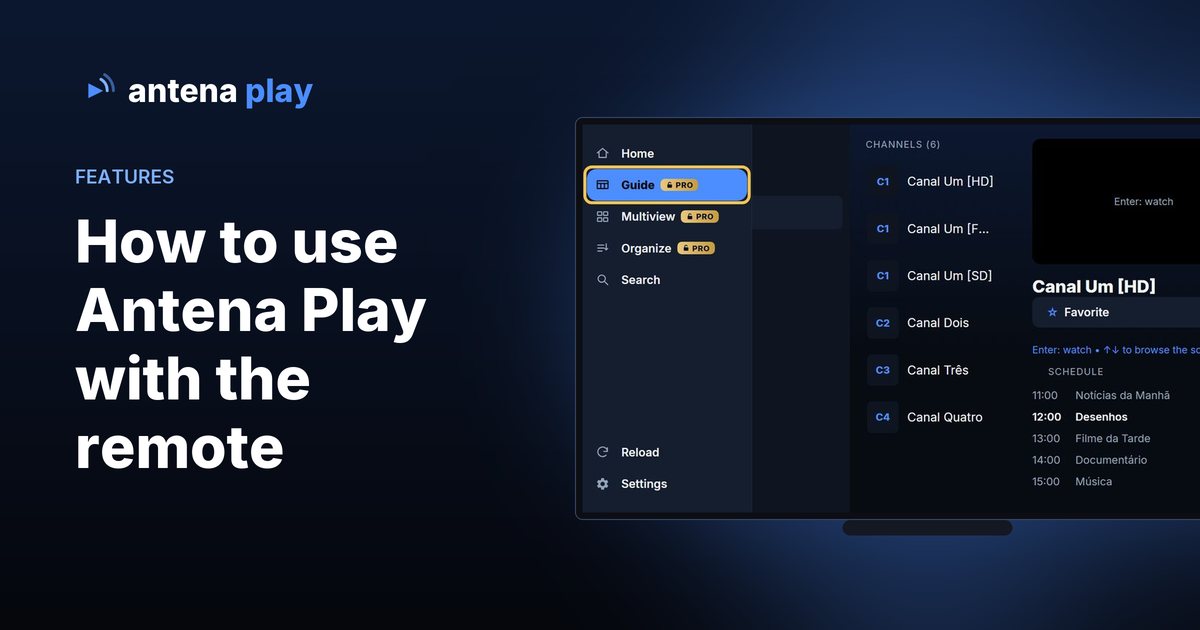
Quick answer
The arrows move, OK confirms and BACK goes back. In Live TV, the left arrow opens the side menu (on Roku, the bar is at the top). In the player, the up arrow opens the options, and ◀ ▶ or CH+/CH− change the channel.
The basics, on any TV
- The arrows move the highlight from one item to another.
- OK opens the highlighted item.
- BACK goes back one screen, or closes the open window.
At the bottom of many screens, the app shows the keys for that screen, such as OK pause ◀ ▶ ±10s ▲ options BACK exit in the movie player. Look there when in doubt.
Android TV, Google TV and TV boxes
This applies to TVs, boxes and sticks running Android, including those with the app installed outside the store.
| Key | What it does |
|---|---|
| ◀ in Live TV | Opens the side menu: Home, Guide, Multiview and Organize (Pro), Search, Reload and Settings. |
| OK on a channel | Plays the channel in the preview. OK again on the same channel opens it full screen. |
| ▶ in the channel list | Takes you to the Favorite button in the preview. OK on it adds or removes the favorite. |
| ▲ in the player | Opens the options: Quality, Aspect ratio, Speed (in movies and series) and the sleep timer. There, ▲▼ choose and ◀ ▶ adjust. |
| ◀ ▶ in the player | On live channels, they switch to the previous or next channel in the category. In movies and series, they go back or forward 10 seconds. |
| CH+ and CH− | On live channels, they change the channel without leaving the player. |
| OK or Play/Pause in the player | Pauses and resumes. The first press, with the controls hidden, only shows them. |
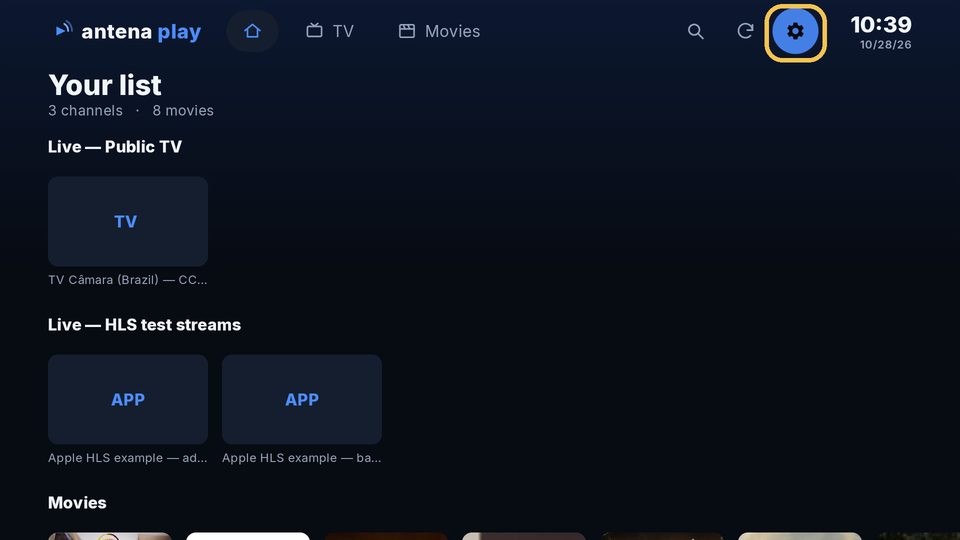
On Home, the top bar leads to the tabs and, through the gear, to Settings.
LG and Samsung TVs
The arrows, OK, the side menu (◀ in Live TV), favoriting (▶ to the preview button) and the player keys work as on Android TV. What changes:
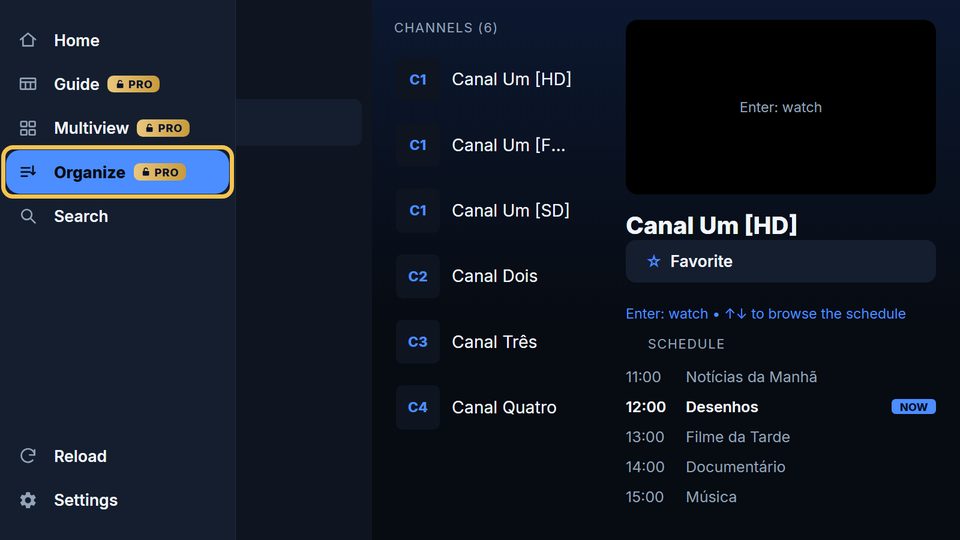
The side menu opens with the left arrow, in Live TV.
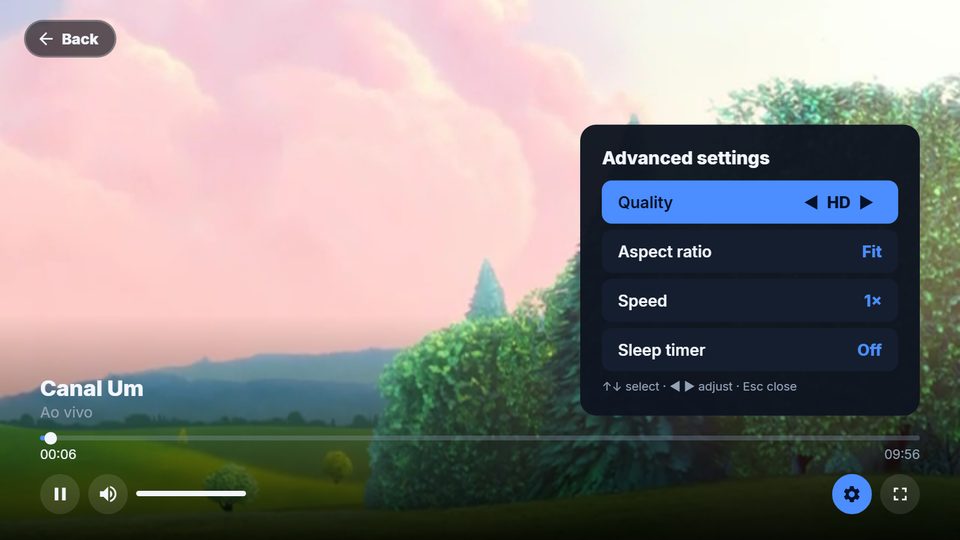
In the player, ▲ opens the options. The movie is Spring, by Blender Studio (CC BY).
- BACK on the home screen asks Exit Antena Play?, with Cancel already highlighted, so no one closes the app by accident.
- CH+ and CH− change the channel on live channels. In a movie, or on a channel with no neighbors, CH+ opens the player options.
- On LG, the remote's Play/Pause, fast forward and rewind keys also work in the player, and Stop exits it.
The LG Magic Remote
- Point the remote at an item and it gets the highlight, like a mouse. After you use the arrows, the pointer only takes over again when you move the remote.
- Move the pointer close to the edge of the screen to scroll the lists.
- In the live player, moving the remote shows ◀ ▶ arrows on screen that change the channel. The remote's scroll wheel changes it too.
Roku
Roku has no side menu: the tabs sit in a bar at the top, which you reach with ▲ from the start of the list.
| Key | What it does |
|---|---|
| ▶ in Live TV | From the categories it goes to the channels and, from the channels, to the Favorite button. OK on it adds or removes the favorite. ◀ goes back one panel. |
| ✱ in Live TV | Opens the program guide (Pro). |
| ✱ or ▲ in the player | Opens the options: Quality, Aspect ratio, Speed (in movies and series) and the sleep timer. |
| ◀ ▶ and CH+/CH− in the player | On live channels, they change the channel. OK shows or hides the channel info. |
| Movies and series | Pause, fast forward and rewind come from Roku's own player, with the usual remote keys. |
| BACK on Home | Closes the app, without asking. On Home, ✱ removes an item from Continue watching. |
Typing your list with the remote
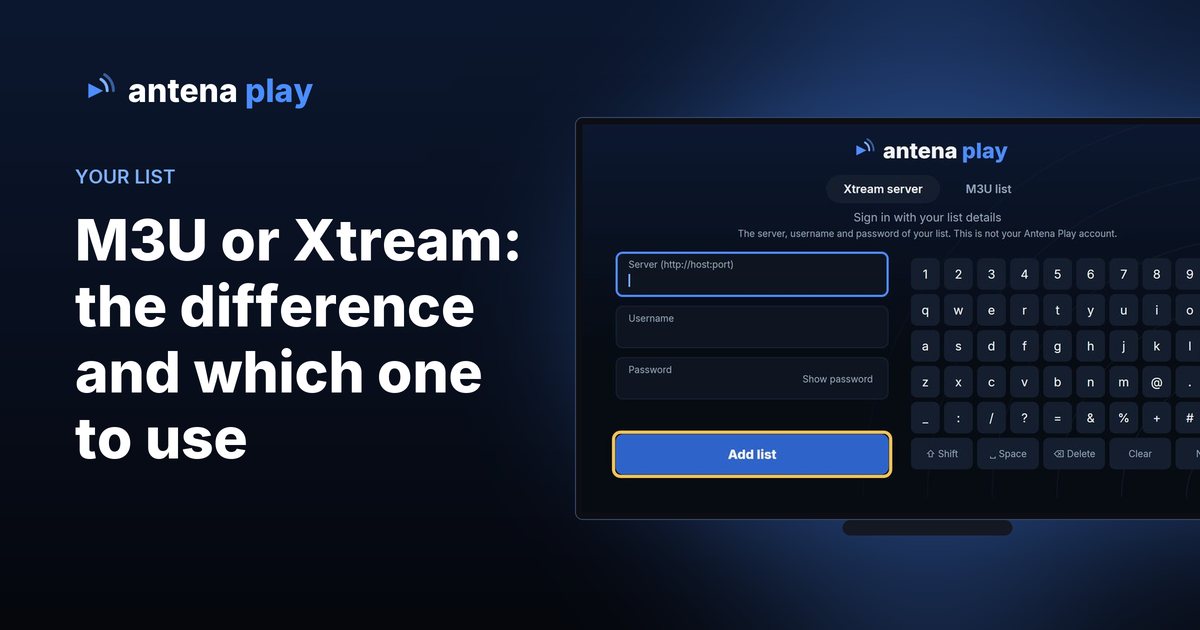
- Prefer the Xtream format if you have a server, username and password: three short fields instead of one long link. The M3U or Xtream guide shows where to find each one.
- On LG and Samsung TVs, the keyboard is the app's own and already has the address symbols on the grid, such as /, :, . and @.
- On Android TV, the TV's system keyboard appears. On Roku, the Roku keyboard: the slash / and the colon are in its symbols mode.
- Before confirming, check it letter by letter. One extra space at the end is enough for the server to refuse it.
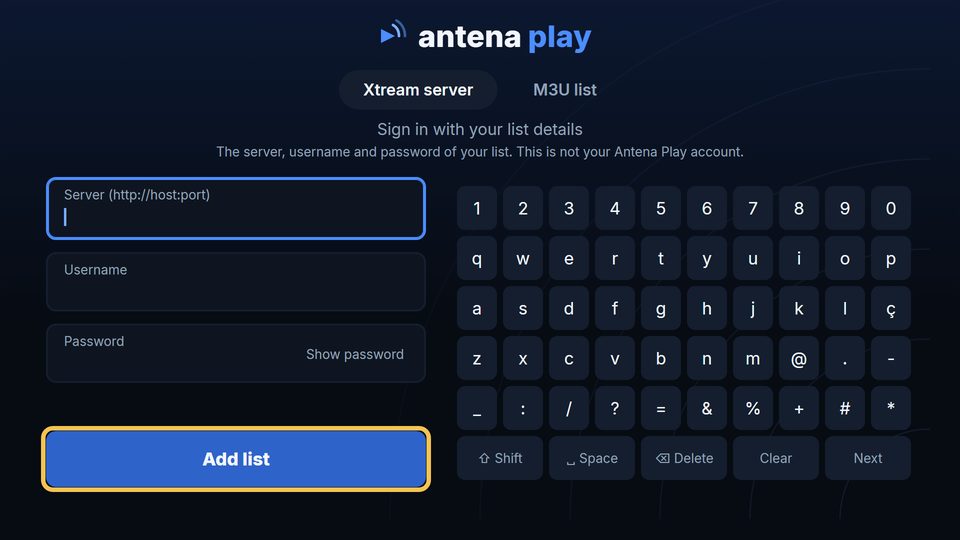
On LG and Samsung TVs, the app keyboard next to the fields.
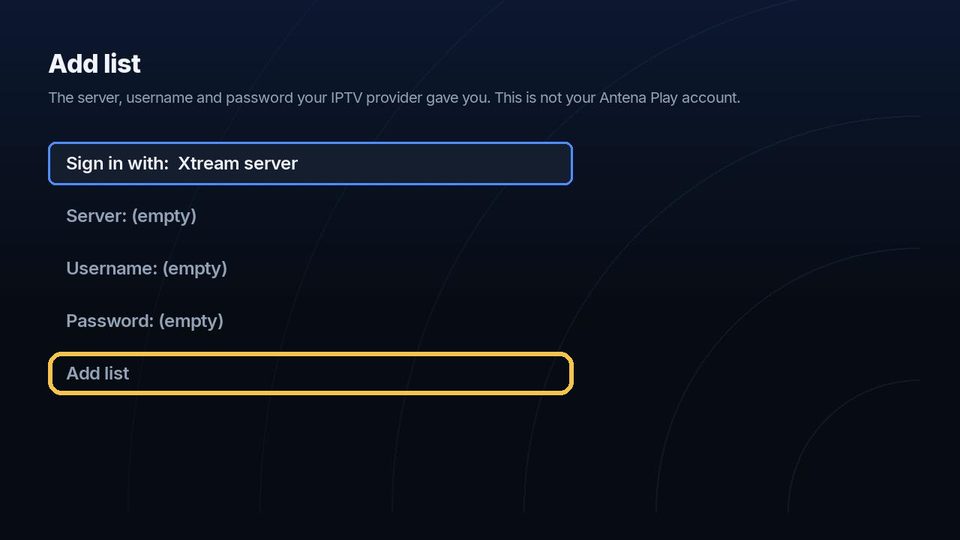
On Roku, choose the format and fill in each field with the Roku keyboard.
Frequently asked questions
How do I open the side menu?
In Live TV, press the left arrow: the menu opens on Android TV and on LG and Samsung TVs. Roku has no side menu; the tabs are in the top bar.
How do I change channels without leaving the player?
On live channels, use the left and right arrows or the CH+ and CH− keys. On the LG Magic Remote, the scroll wheel also changes the channel.
How do I open the player options?
Press the up arrow during the video. On Roku, the ✱ button opens them too. The options include Quality, Aspect ratio, Speed and the sleep timer.
Read also
Did not find the answer? The Help center answers account and subscription questions, and contato@antenaplay.app handles the rest.
© 2026 Antena Play · A MyProjects Studio product · B.B.C Suporte e Consultoria em Tecnologia Ltda
Guides by device: Android TV and TV boxes · Android phones · iPhone · Roku · LG TV · PC browser
Guides · How to install on each device · How to use · Help · Privacy Policy · antenaplay.app